Guide
Is there MS Paint for Mac?
Microsoft Paint is Windows-only. Here’s what to use on a Mac, and how to do the usual Paint jobs.
Updated October 20, 2026
Short answer: no. Microsoft Paint is part of Windows, and Microsoft doesn’t make a Mac version. Macs don’t come with a paint program either, so if you’re used to opening Paint to scribble on a picture, fill a shape or add a quick label, you need something else.
Your options on a Mac
- Preview (free, already on your Mac). Open a picture, then click the Markup button. You can crop, resize, draw with a pen, add shapes, text and a signature. It’s great for quick notes, but it has no paint bucket, no brushes to speak of and no layers.
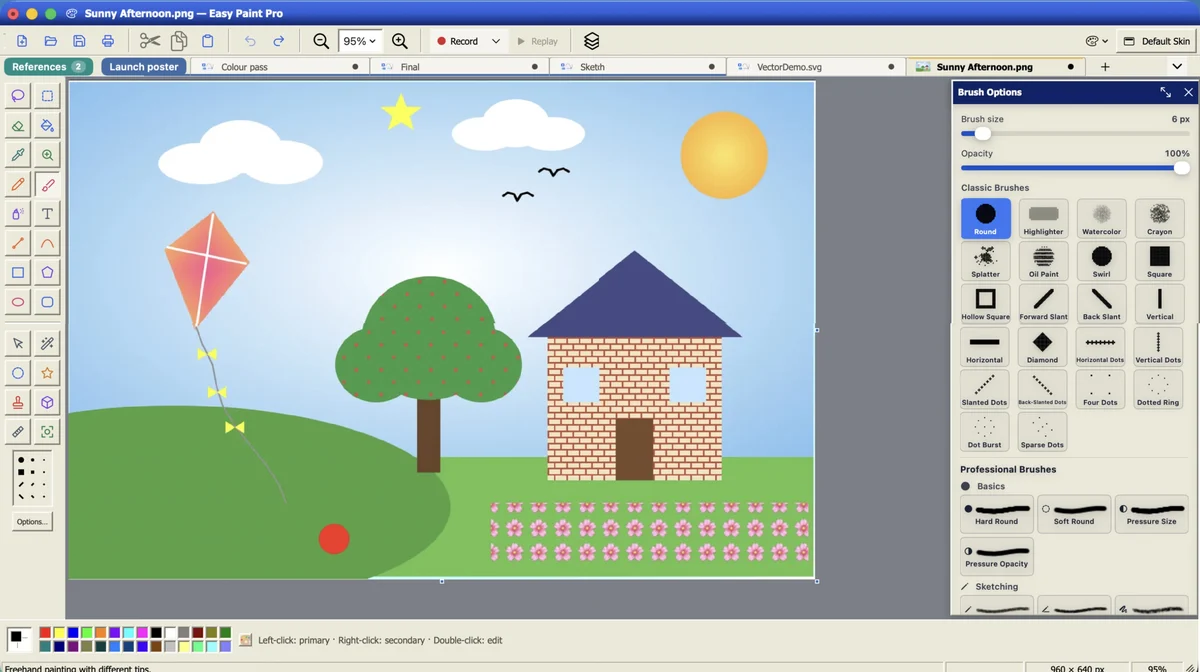
- Easy Paint Pro. A classic paint program made for the Mac. Every toolbar button has its name under it, and the Classic look puts the tool palette on the left and the colours along the bottom, like the paint programs many of us grew up with. It adds a lot on top: 50+ brushes, pattern, gradient and emoji fills, stamps, layers and tabs.
- Paint websites. Some sites let you paint in a browser. They need the internet, and some show ads or upload your picture to their servers.
How to do the usual Paint jobs in Easy Paint Pro
- Draw freehand: choose Pencil or Brush. Left-click paints with the primary colour, right-click with the secondary colour, just like Paint.
- Pick colours: click a colour in the palette for the primary colour, right-click for the secondary. Double-click a swatch to change it.
- Fill an area (paint bucket): choose Fill and click inside a closed area. Besides a solid colour you can fill with a gradient, a pattern or an emoji.
- Lines and shapes: Line, Curve, Rectangle, Ellipse and Polygon, plus arrows and speech bubbles under Shapes. A shape stays movable until you press Return, so you can nudge it into place first.
- Text: choose Text, click on the picture and type. Press Command–Return when you’re done. Text stays editable: choose Select and double-click it to change it later.
- Select and move part of the picture: Select draws a box; Lasso, Circle Select and Magic Wand are there too. Drag the selection, then press Return to put it down.
- Crop: choose Crop and drag around the part you want to keep.
- Resize the picture: . Pick “crisp” for pixel art and “smooth” for photos.
- Make the canvas bigger or smaller: drag a handle on the edge of the canvas, or double-click the size at the bottom of the window and type an exact size. This never stretches your picture.
- Rotate or flip: , and friends.
- Undo: Command–Z, as many times as you need.
- Save as PNG or JPEG: , or for PNG, JPEG, GIF, BMP, TIFF, HEIC, WebP, PDF and SVG.
Make it look like the Paint you remember
Choose (or press Control–Command–K) and pick the Classic look. It comes in Sky Blue, Veggie Green, Pebble Gray and Night. The home page shows all six looks side by side.
How it compares
The comparison on the home page lists what Easy Paint Pro, Apple Preview and Microsoft Paint each do, feature by feature.
More guides
- Blur or pixelate part of a screenshot
- Remove the background from a picture
- Make pixel art
- Draw and write on a picture
Microsoft and Paint are trademarks of Microsoft Corporation. Easy Paint Pro is an independent app and isn’t affiliated with or endorsed by Microsoft or Apple.